What you will achieve
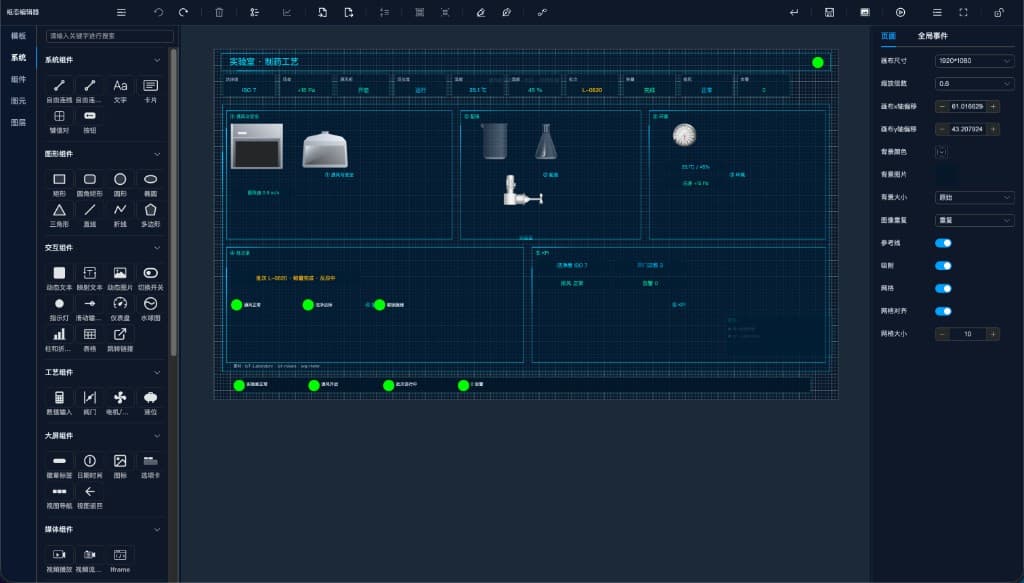
A screen showing live temperature and device status whose bindings and layout survive reopening.
Before you begin
- A verified acquisition loop with one numeric channel and one status channel.
- PlgSvgEditor enabled on the React host, with edit and view permissions.
01 · Create a minimal screen
- Open the SVG project list (/svg-editor) and create a clearly named practice project.
- Add a title, numeric text, unit, device symbol, and status caption. Align them for the target display size.
Expected result
Objects are easy to select and the canvas fits the intended display.
02 · Bind one real value
- Select the numeric component and use its data-binding settings to map the verified channel to its display property.
- Set the unit and format; use the component’s supported quality properties to distinguish valid, missing, and failed data.
- Configure the symbol’s display/color rules from the status value and retain a text label.
Expected result
Preview matches the table view and clearly communicates state changes.
03 · Add project images
- Use the image picker’s local upload or shared-library option for backgrounds and illustrations.
- The current editor embeds selected images in the project. Confirm loading completes before saving.
Expected result
Project images remain visible after reopening.
04 · Save, reopen, and register a view
- Save, leave the editor, reopen the same project, and check layout, bindings, and images.
- Use the supported view configuration to register a SvgEditorView linked to the saved project, then assign object and view permissions.
- Open the runtime from navigation as a normal viewer; editor preview alone is not acceptance.
Expected result
The saved project, reopened editor, and runtime view agree.
Troubleshooting
Preview has data, runtime does not
Verify the registered project, saved version, and viewer permissions for the channels and view.
Only default values appear
Check for static sample values, the bound target property, and valid upstream channel data.