What you will achieve
A time-filtered report with matching dataset fields and verified HTML/PDF export.
Before you begin
- PlgDynamicData and PlgReportStudio enabled with configuration rights.
- A readable business database and test data. Archive SCADA history into a queryable table/view first if required.
01 · Configure a data source
- Open /dynamic-data/datasource and configure the database server, database, and appropriately scoped account.
- Save and test the connection. Keep passwords in server-side configuration, not templates or browser scripts.
Expected result
The connection succeeds against the intended practice database.
02 · Create and preview a dataset
- Open /dynamic-data/dataset and write a read-only query with stable output aliases such as device_name, value, and sample_time.
- Declare the parameters actually used by the SQL, including types and test values.
- Preview and check column names, types, ordering, and time boundaries; distinguish an empty result from a query error.
Expected result
The same parameters return repeatable, understandable data.
03 · Create a query report and bind the dataset
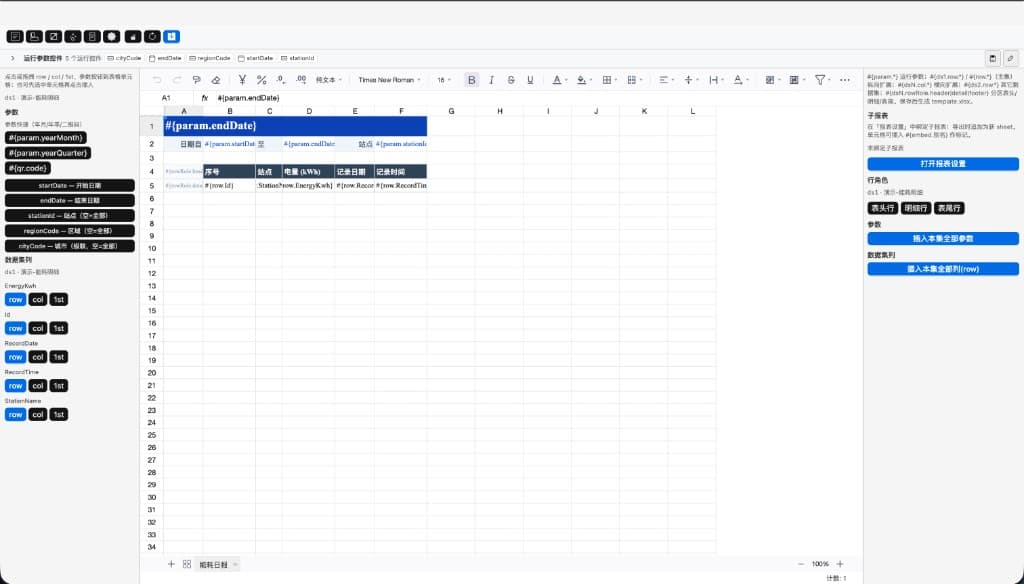
- Open /report/list, create a Query report, and bind the dataset with its assigned alias, such as ds1.
- Match runtime parameters to the dataset, then configure sheets, title, widths, and table headers.
- Report fields come from SQL results. A SCADA channel number is not a report field, and legacy placeholders may not apply.
Expected result
The designer can discover bound columns and parameters.
04 · Insert fields and validate the template
- Use the designer’s field panel for row/parameter placeholders and verify aliases, column names, and expansion direction.
- Run template validation, fix errors, and preview with the same parameters. Check pagination, units, merges, and empty results.
- Save, close, and reopen to verify the template and bindings.
Expected result
Validation passes and preview values/row counts match the dataset query.
05 · Verify runtime and exports
- Run the report as a permitted viewer, enter the time range, and inspect parameter defaults and rights.
- Export a supported HTML, PDF, or package and inspect headers, detail rows, totals, and text across pages.
- If an export limit truncates output, narrow the range or adjust site settings before treating the file as complete.
Expected result
Runtime and exported files agree, with completeness verified.
Troubleshooting
Fields are present but blank
Check dataset rows, binding alias, field casing, parameter types, and template diagnostics.
Saving reports a version conflict
Preserve the current edit and merge against a fresh template snapshot; do not simply substitute a newer version number.