What you will achieve
One scoped, reviewable change with application, undo, save, and reopen verified.
Before you begin
- A current editor with supported and configured AI features.
- A practice project; use production fields and account data only in an authorized environment.
01 · Check the supported scope
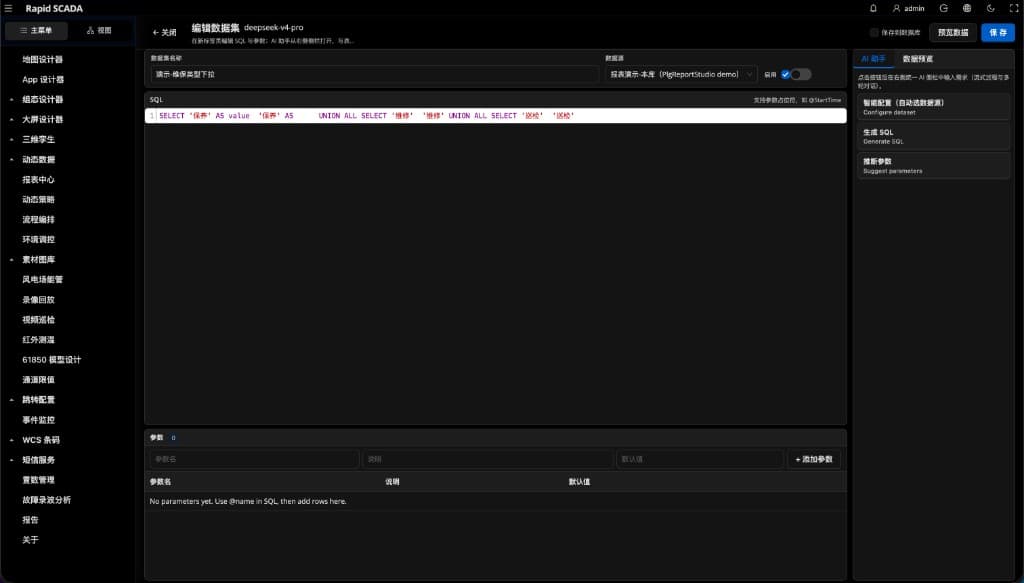
- Open AI from the target editor and inspect the supported actions and limits for that domain.
- SVG, dashboard, and workflow editing follow their current registries, models, and validators. Use native UI for unsupported actions.
Expected result
The project, selection, and version targeted by the change are clear.
02 · Describe one verifiable change
- For example: “Align the three selected metric cards along the left edge with equal spacing, preserving existing bindings.”
- Provide verified dataset fields when relevant; do not ask the assistant to invent channel numbers, table schemas, or device addresses.
Expected result
Scope, preservation requirements, and acceptance criteria are specific.
03 · Review before applying
- Inspect affected nodes, properties, and bindings, ensuring current unsaved work is not replaced by an old snapshot.
- Use the editor’s native review/apply feature when supported; do not overwrite the project with an entire generated JSON document.
- Inspect visuals/data and verify undo and redo after application.
Expected result
The change matches the request and preserves working data and interactions.
04 · Save and confirm the boundary
- Save and reopen through the current editor and verify real data and runtime access as in the earlier lessons.
- Native local tools cover capability discovery, conditional DynamicData SQL edits, and ReportStudio validation/conditional saves. Use the editors for other domains.
- Archived MCP services and CLIs are retired and are not offline-editing fallbacks.
Expected result
The result is an inspected, persisted edit rather than merely a generated description.
Troubleshooting
The sidebar reports an unsupported action
Use native editing or a plugin version that provides the required contract; do not bypass it with archived tools.
Validation passes but the screen looks wrong
Structural validation does not prove rendering. Inspect components, assets, channel state, and preview before a small correction.